Mesh repair examples
Explore free stl repair examples for printable meshes
These free stl repair examples show how a hole, an inverted surface, or a loose shell can change a print. Use the checks below to judge whether a repair preserved the intended shape.
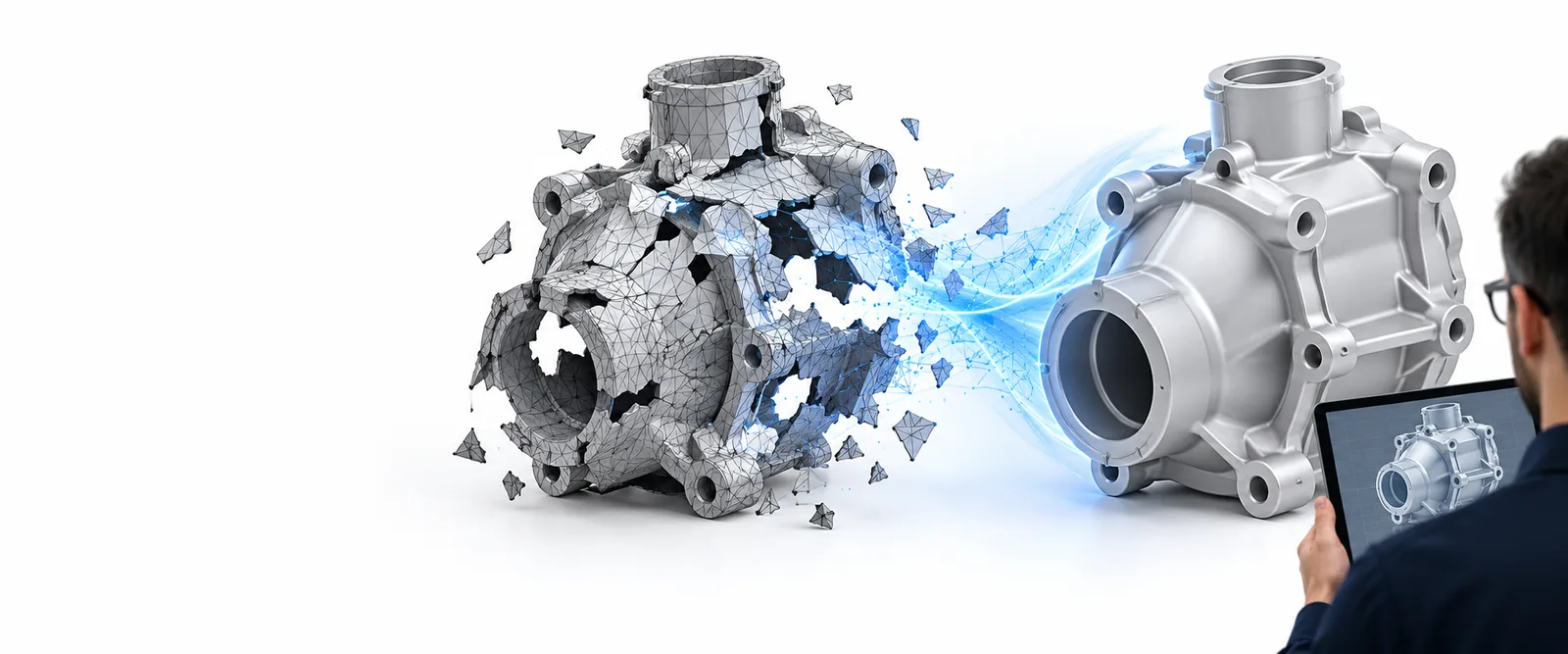
Why a damaged sample mesh blocks printing
A model can look solid on screen while its triangles describe an open or ambiguous surface.
Three concrete repair workflows
Each workflow starts with a visible symptom, then checks the mesh itself and the sliced result. The action that closes one defect may be wrong for another.
-
1
Close a hole in a bracket
Imagine a mounting bracket with a missing patch near its bolt hole. Locate the open boundary, close only the unintended gap, and compare the patched contour with the original design. Then slice the model: a continuous wall around the bolt hole matters more than a clean-looking viewport. This STL repair example fails if the patch fills the functional hole as well.
-
2
Correct an inverted shell
A small enclosure may have triangles facing inward even though its outer shape appears intact. Identify the affected faces, correct their orientation, and verify that the enclosure still has the intended openings. Inspect a cross-section in the slicer before printing. If the interior disappears or unexpected solid regions appear, the STL repair needs another pass.
-
3
Separate loose geometry
A scanned figurine may contain a tiny floating fragment near its base. Inspect disconnected components before deleting anything: the fragment could be scan noise or a deliberate detail. Remove confirmed debris, preserve intentional parts, and check the slice preview for isolated islands. This free example is complete only when the decision about that fragment is documented.
What the repaired example should show
A repaired file is useful evidence only when its remaining uncertainty is visible. These examples cannot establish print readiness from appearance alone.
-
A closed mesh cannot prove design intent
Automatic hole filling may create a neat surface where an opening belongs. A before-and-after screenshot cannot tell whether a vent, socket, or bolt passage was meant to stay open.
WorkaroundCompare the result with the source drawing or a known-good part, then inspect each repaired boundary.
-
Surface repair cannot guarantee strength
STL repair can resolve a surface defect without making a thin tab or narrow joint suitable for the chosen material and load. A clean slice is not a mechanical test.
WorkaroundCheck wall thickness, orientation, material guidance, and the part's actual use before printing.
-
Removing islands can erase detail
Disconnected geometry is not always junk. Letters, pins, and intentionally separate pieces can appear as independent shells in a mesh report.
WorkaroundInspect each component in context and keep a copy of the original file for comparison.
Checks before using a repaired mesh
Use this comparison to record what a free STL repair example demonstrates—and what still needs checking on your own model.
Example before repair
Evidence to seek afterward
Open boundary
Example before repair
An unintended gap interrupts the bracket surface.
Evidence to seek afterward
The gap is closed while the intended bolt hole stays open.
Face direction
Example before repair
Some enclosure faces point toward the interior.
Evidence to seek afterward
The affected faces have consistent orientation without changing intended openings.
Loose shell
Example before repair
A small component sits apart from the scanned figure.
Evidence to seek afterward
The component is either retained as intentional detail or removed as confirmed debris.
Slicer preview
Example before repair
Unexpected gaps, solid areas, or isolated islands appear.
Evidence to seek afterward
The preview matches the intended walls, cavities, and separate parts.
Dimensions
Example before repair
The source file provides the reference size.
Evidence to seek afterward
Critical measurements still match the design after STL repair.
Review record
Example before repair
The original mesh preserves the visible defect.
Evidence to seek afterward
The changed area and any unresolved questions are noted alongside the repaired copy.
Take the next step with your 3D model
Use Stlrepair as a guide to the checks above, then explore the linked 3D workspace for your own model workflow. Do not assume that a visually improved mesh is automatically repaired or ready to print; retain the original, inspect the geometry, and verify the slice.
Explore 3D workspace- Keep the original model
- Inspect changes against design intent
- Confirm the sliced result
FAQ about free repair examples
Look for the defect in the original mesh, the exact area changed, and a check of the resulting slice. A picture of the finished surface alone cannot show whether an intended opening was accidentally filled.
Yes, if the file's license permits your intended use and you keep an untouched copy. Start with one clearly identifiable defect so you can compare the original, the edited mesh, and the slicer preview.
One fix may leave another issue behind, such as a separate shell or faces with inconsistent orientation. Recheck the reported location and inspect the sliced layers rather than assuming the first repair resolved everything.
No. They illustrate geometry checks, not a guarantee about material behavior, machine settings, or strength. Test the repaired file in your own slicer and assess the part against its intended use.