The hobby printer
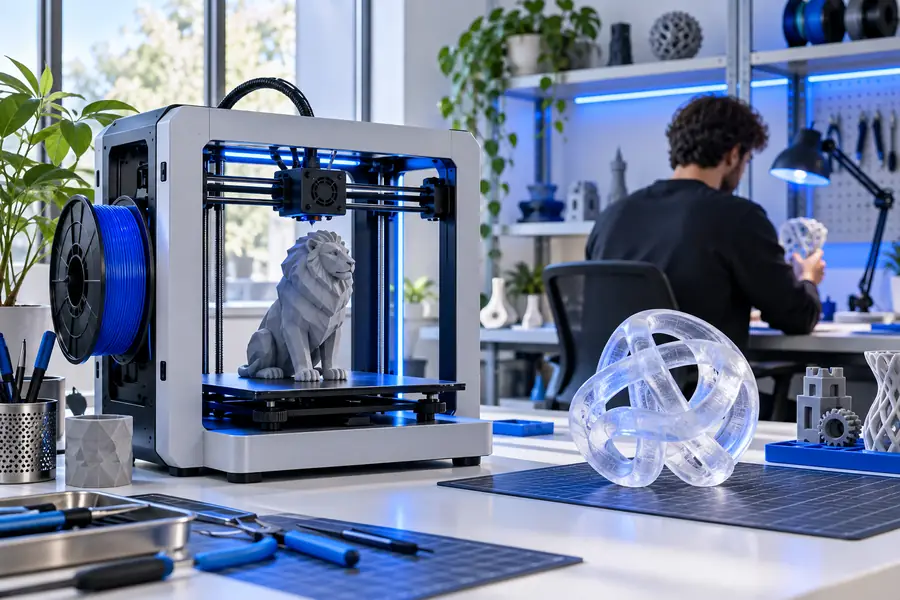
A downloaded model opens with holes or fails during slicing, and the priority is getting a usable starting point.
A focused repair pass can make the file easier to inspect before slicer checks.
how to fix an STLMesh preparation
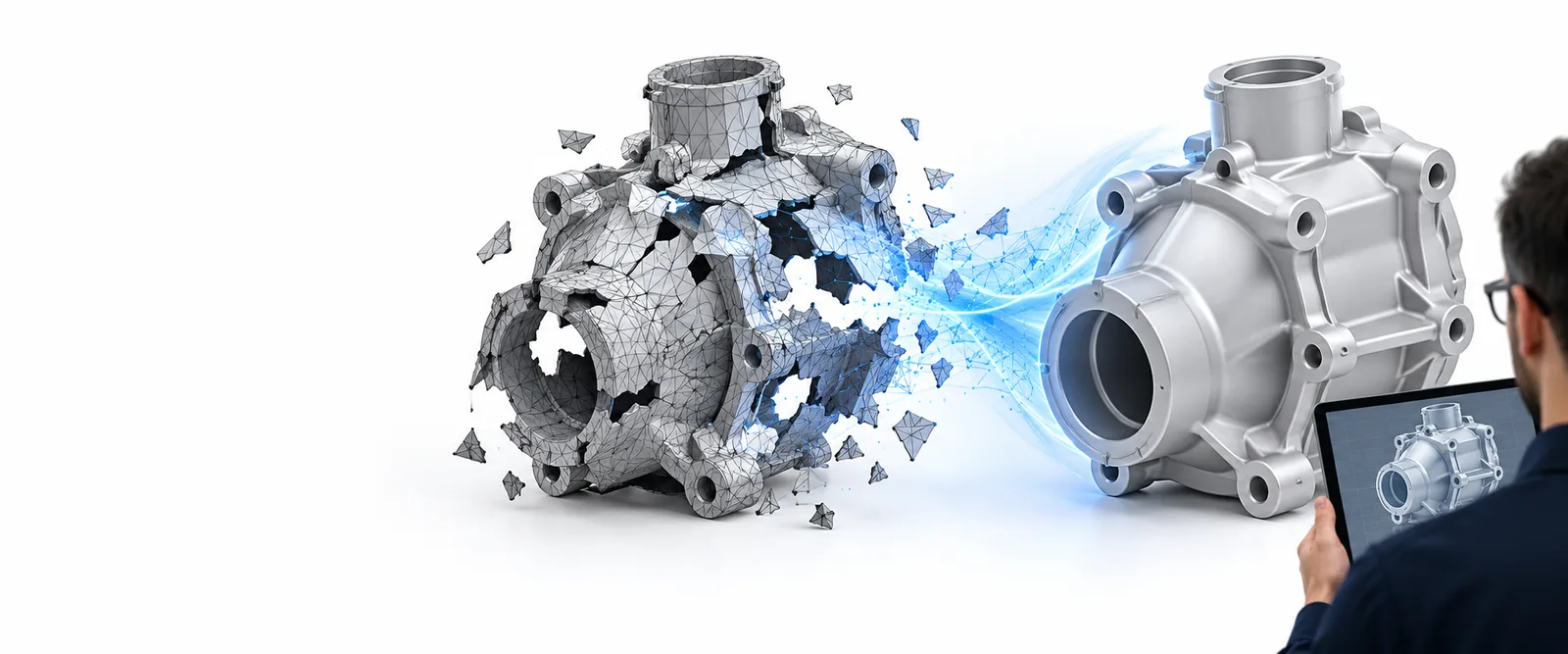
STL repair online gives you a practical way to prepare a damaged mesh before slicing, editing, or sending it into another 3D workflow. Start with the file, inspect the result, and keep the process focused on a usable model.
Related paths
Choose a more specific route when your goal is to compare methods, understand the software, or inspect practical examples.
Know the edges
A guided route can improve mesh structure, but it cannot replace judgment about design intent, print requirements, or severe geometry loss.
If a large section of the object is absent, repair can only infer or preserve what remains; it cannot know the original shape with certainty.
WorkaroundUse the repaired file as a base, then rebuild the missing area in a modeling tool.
A closed mesh may still fail because of thin walls, unsupported overhangs, scale issues, or slicer-specific settings.
WorkaroundInspect wall thickness and preview the model in your intended slicer before printing.
Intersecting shells, internal surfaces, or decorative details can be technically valid but undesirable for the final part.
WorkaroundReview the output and remove features that conflict with the intended manufacturing result.
A repaired STL remains a triangle mesh, so it may be less editable than the original CAD or sculpting project.
WorkaroundKeep the source design whenever possible and use the repaired mesh for downstream use.
Simple sequence
The process is easiest to manage when you separate file inspection, structural correction, and final validation.
Begin with the STL that is failing to slice, importing, or behaving correctly in the next application. Keep an untouched copy so the original remains available.
Point to the issue you actually see, such as open surfaces, disconnected shells, holes, or unwanted fragments. Specific context helps keep the repair focused.
Check the repaired shape, surface continuity, and overall silhouette. If the result changes the design rather than fixing the structure, return to the source or use a modeling workflow.
Choose with context
Both approaches have a place. The better choice depends on how much control you need and how clearly you understand the mesh problem.
Manual mesh editing
Guided online workflow
Manual mesh editing
You inspect and diagnose every issue yourself.
Guided online workflow
You describe the observed problem and begin with a focused repair path.
Manual mesh editing
Depends on familiarity with mesh-editing tools.
Guided online workflow
Useful for quickly testing whether the file can be made workable.
Manual mesh editing
High control over vertices, edges, and surfaces.
Guided online workflow
Less granular control over each triangle.
Manual mesh editing
Complex modeling decisions and deliberate topology changes.
Guided online workflow
Common structural problems and an efficient first correction.
Manual mesh editing
You decide exactly what to rebuild or remove.
Guided online workflow
The workflow can preserve or improve structure but cannot infer every design choice.
Manual mesh editing
You are responsible for checking the complete result.
Guided online workflow
You are still responsible for inspecting the repaired model before use.
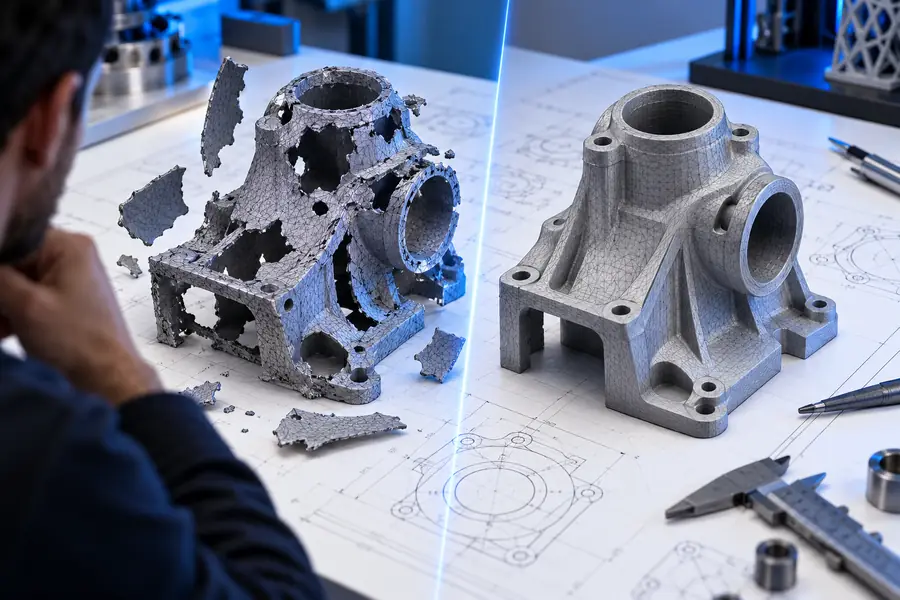
Visual check
A useful comparison is not just a smoother surface. Look for clearer continuity, fewer accidental fragments, and a shape that still matches the intended object.
Compare structure, silhouette, and print readiness rather than surface appearance alone.
Practical uses
Different users reach this workflow for different reasons, but the shared goal is a mesh that behaves more predictably in the next tool.
A downloaded model opens with holes or fails during slicing, and the priority is getting a usable starting point.
A focused repair pass can make the file easier to inspect before slicer checks.
how to fix an STLA mesh is being handed to another person or application and needs a cleaner structural baseline.
Repair helps separate obvious mesh faults from later design decisions.
stl repair toolA scanned object contains disconnected fragments, holes, or irregular surfaces from the capture process.
The repaired result can provide a more coherent base for inspection and refinement.
free stl repair examplesA part arrives as an STL rather than editable source geometry and must be assessed before fabrication.
A structured review reduces the chance that a preventable mesh issue reaches the next stage.
what is stl repair softwareNext step
Bring the file into a focused repair workflow, describe the issue in plain language, and inspect the result before you commit it to printing, editing, or production.
Repair an STL onlineCommon questions
It refers to correcting common structural problems in an STL through a browser-based workflow rather than beginning with manual mesh editing. Typical goals include addressing holes, open surfaces, disconnected parts, or other issues that prevent the file from moving cleanly into the next application.
No. It can help with many structural problems, but it cannot reliably recreate missing design intent or decide whether a thin wall, internal surface, or unusual feature is intentional. Severe geometry loss may require rebuilding the model from source data.
No. Repair is only one part of print preparation. You should still check wall thickness, scale, orientation, supports, and the slicer's preview because a structurally improved mesh can still be unsuitable for a particular printer or material.
Yes. Keep an untouched copy so you can compare the repaired result and return to the original if a feature was changed unexpectedly. Preserving the source is especially important when the mesh contains details whose design intent is not obvious.
Use manual editing when you need precise face-level control, deliberate topology changes, or reconstruction of a missing area. An online workflow is most useful as a focused first pass or when the problem is clear enough to describe and validate afterward.