Mesh repair guide
Which stl repair tool fits your mesh fault?
An stl repair tool is most useful when you know what is wrong with the mesh. Start by checking for open edges, disconnected shells, and inverted faces; then verify that the result still matches the intended part.
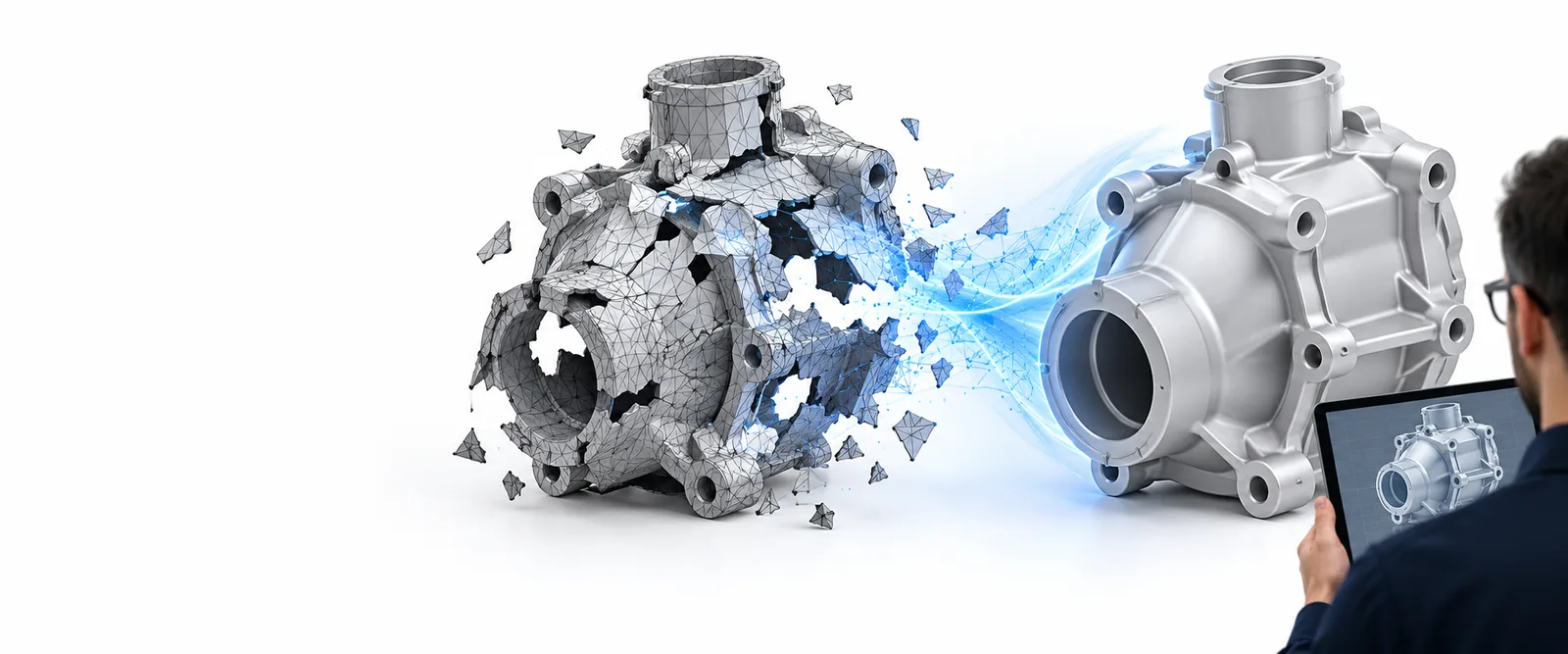
This entry point vs the general one
A repair-focused workflow begins with a defect and a validation check. A general modeling workflow begins with changing the shape. Neither approach makes the other unnecessary.
The 3 things only it does
The distinction is focus, not exclusivity: a dedicated repair process puts these three checks ahead of broader modeling tasks. Many mesh editors can perform them too.
-
1
Locate the broken boundary
Inspect the mesh for open edges and unintended holes. A visible gap is a useful clue, but a defect can also hide inside the model or along a narrow seam. Record where the opening is before applying an automatic patch.
-
2
Resolve shell and face conflicts
Look for separate shells, intersecting surfaces, and faces whose orientation disagrees with their neighbors. Decide whether each shell is intentional: deleting a loose fragment may help, while joining two intended parts incorrectly can change the design.
-
3
Validate the repaired solid
Check that the mesh is closed and that the part still has the expected dimensions, openings, and wall thickness. Reopen the exported file in a slicer or another mesh viewer; a successful repair command alone is not proof of printability.
How to start
Use the known defect to choose where to begin. This comparison describes workflows, not guaranteed features of any particular product.
Repair-focused workflow
General mesh editor
Starting question
Repair-focused workflow
What makes this mesh invalid or unsuitable for slicing?
General mesh editor
What geometry or appearance needs to change?
First inspection
Repair-focused workflow
Check boundaries, shell count, and face orientation.
General mesh editor
Inspect the whole object and its editable geometry.
Typical first action
Repair-focused workflow
Isolate a defect before attempting a targeted correction.
General mesh editor
Select vertices, faces, or objects for a manual edit.
Best fit
Repair-focused workflow
A part whose shape is already correct but whose mesh has an identifiable fault.
General mesh editor
A part that needs substantial remodeling or a deliberate design change.
Main risk
Repair-focused workflow
An automatic fix may close an intentional opening or remove needed detail.
General mesh editor
Manual edits may introduce new gaps or misaligned faces.
Finish line
Repair-focused workflow
Recheck mesh integrity and compare the result with the original design.
General mesh editor
Export the edited shape, then run the same integrity checks.
Limits
A closed mesh is not the whole answer
An STL can pass an integrity check yet still have walls too thin for the intended process, incorrect units, missing design details, or geometry that a slicer handles unexpectedly. An stl repair tool cannot infer every design intention from triangles alone. Keep an untouched copy of the original, compare dimensions after changes, and inspect the exported result before committing to a print. If the shape itself is wrong, return to the source model rather than repeatedly patching its STL.
Explore 3D creation- Preserve the original file
- Check dimensions and intended openings
- Validate the exported mesh
Tool-specific FAQ
Identify whether the problem is a mesh defect or a design change. For a mesh defect, look for ways to inspect open boundaries, shells, and face orientation, then verify the exported result. If the shape needs redesigning, a general modeling workflow may be a better starting point.
No. Some non-manifold edges have an obvious correction, while others occur where several intended surfaces meet or overlap. Inspect the affected region and compare any proposed fix with the part's intended shape before accepting it.
Not necessarily. A closed surface is one important check, but wall thickness, scale, clearances, and the requirements of the chosen printing process still matter. Review the repaired file in a slicer and check the resulting layers.
It may, but you should not assume it will. Filling a hole, merging shells, or removing overlapping geometry can alter the part, especially near small features. Compare key measurements and intentional openings against the untouched original.
Edit the source when a hole, wall, joint, or other feature is wrong by design rather than broken in the exported mesh. The source model usually gives you more control over those changes. Export a fresh STL afterward and check that new mesh for defects.