3D printing hobbyist
A downloaded model imports with an open edge, missing face, or slicer warning.
A checked mesh gives the slicer a clearer closed volume while preserving a backup of the original download.
free STL repairSTL repair guide
If you need to know how to fix an STL, start with diagnosis rather than random edits. This workflow shows how to inspect a mesh, repair common defects, and validate the result before sending it to fabrication.
Know the limits
Before beginning STL repair, make a copy of the original file and decide what the model must preserve: scale, wall thickness, openings, and intended solid volume.
Automatic STL repair can close a hole or reconnect surfaces, but it may not know whether an opening is deliberate or accidental.
WorkaroundKeep the original file and inspect every filled opening against the source design or reference dimensions.
STL repair can improve triangle connectivity and watertightness, but it does not restore editable sketches, feature history, or parametric constraints.
WorkaroundReturn to the original CAD or sculpting file when a dimensional redesign is required.
A mesh can be technically closed while still containing walls too thin for the selected printer, material, or manufacturing process.
WorkaroundCheck wall thickness in the slicer or modeling software after STL repair and thicken critical areas deliberately.
STL files commonly store geometry without a dependable unit declaration, so a repaired mesh can still import at the wrong size.
WorkaroundConfirm one known measurement before repair and verify the same measurement after export.
Core workflow
A dependable STL repair process separates detection, correction, and validation. Do not treat a successful export as proof that every geometric problem is solved.
Open the STL and look for visible holes, flipped faces, gaps, self-intersections, disconnected shells, spikes, and unexpectedly missing surfaces. Record the intended dimensions and identify whether the file should represent one closed solid or several separate parts.
Run the least invasive repair available: merge duplicate vertices, remove isolated fragments, correct face orientation, close accidental holes, and resolve non-manifold edges. Preserve deliberate openings and separate shells instead of blindly filling everything.
Recheck watertightness, normals, shell count, dimensions, and wall thickness. Slice the repaired STL or run a preview to reveal remaining gaps, internal faces, unsupported regions, or scale changes before manufacturing.
Visual check
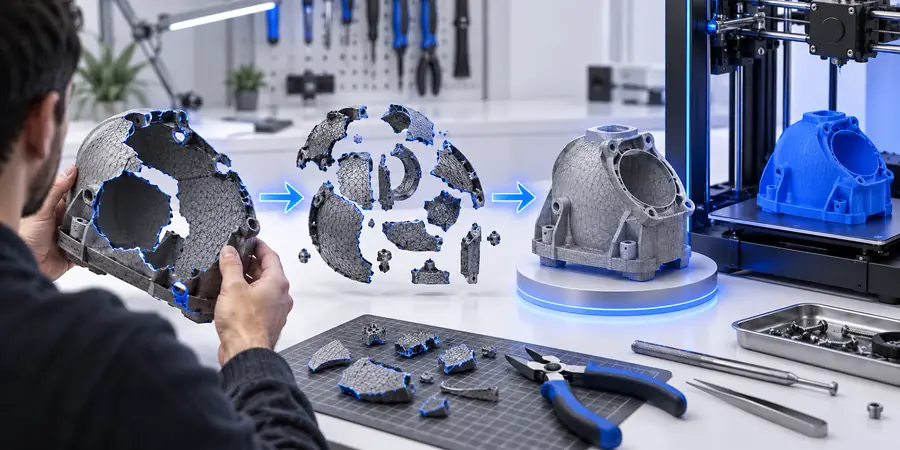
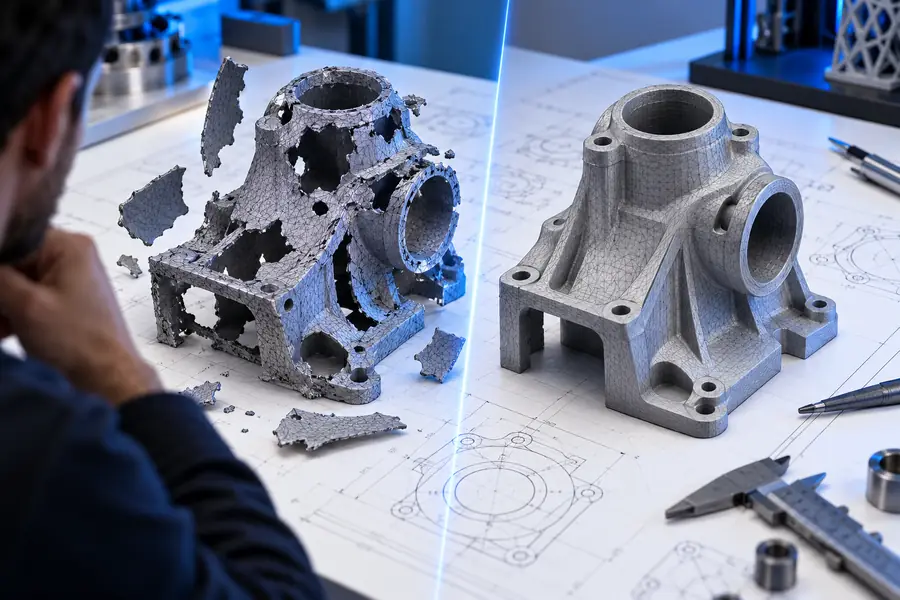
The before-and-after comparison is useful, but a smoother-looking surface is not enough. Confirm that the repair corrected topology without changing the part's purpose or dimensions.
Compare topology, dimensions, and intended openings—not appearance alone.
Decision table
Use this comparison to choose the right next step when basic STL repair does not fully solve the problem.
Automated STL repair
Manual model correction
Automated STL repair
Small holes, flipped normals, duplicate vertices, and disconnected fragments
Manual model correction
Major shape changes, missing design features, or incorrect dimensions
Automated STL repair
Usually preserves the existing triangle surface when the defect is local
Manual model correction
Can intentionally redesign geometry rather than preserve the damaged mesh
Automated STL repair
Limited; it detects topology patterns rather than understanding the original design
Manual model correction
Strongest when the original dimensions and functional requirements are known
Automated STL repair
Good for closing small gaps and joining fragmented scan regions
Manual model correction
Better for rebuilding noisy or heavily distorted areas
Automated STL repair
No; the result remains a surface mesh
Manual model correction
Only if you return to the original CAD or sculpting project
Automated STL repair
Always check shell closure, normals, scale, and slicing after repair
Manual model correction
Still required because a manual edit can introduce new intersections or gaps
Automated STL repair
A checked STL copy with a clear filename and preserved original
Manual model correction
A revised source model followed by a newly exported STL
Quality checks
Practical scenarios
The same STL repair sequence applies to different kinds of mesh problems, but the validation standard should match the final use.
A downloaded model imports with an open edge, missing face, or slicer warning.
A checked mesh gives the slicer a clearer closed volume while preserving a backup of the original download.
free STL repairA prototype export has duplicate vertices or inconsistent face normals after a CAD conversion.
Targeted STL repair can clean the export before a print or fit check without replacing the source design.
STL repair onlineA scan contains small gaps, isolated fragments, and several disconnected shells around the object.
Mesh cleanup becomes more predictable when fragments are separated from intentional cavities and the repaired result is measured afterward.
free STL repair examplesA vendor receives an STL that looks correct but fails a manufacturing or slicing validation step.
A documented STL repair checklist helps identify whether the issue is topology, scale, wall thickness, or an unsuitable export.
best STL repair alternativeNext step
Start with a duplicate of the original, describe the visible defect, and review the returned geometry against your dimensions and manufacturing requirements. STL repair is most reliable when automated cleanup is followed by human validation.
Repair my STLTutorial FAQ
These answers cover the most common interpretation of how to fix an STL when the file opens, slices, or exports incorrectly.
Make a copy of the file, inspect it for holes, flipped normals, non-manifold edges, disconnected shells, and scale problems, then apply the least invasive STL repair available. Validate the repaired mesh by checking dimensions, shell closure, wall thickness, and a slicer preview before using it.
An STL may contain gaps, overlapping faces, duplicate vertices, reversed normals, self-intersections, or disconnected fragments from an imperfect export or scan. Some applications tolerate these defects while slicers and manufacturing systems reject or misinterpret them.
It can often close small holes or bridge simple gaps, but it cannot reliably recreate complex missing design features. When a large region is absent, return to the original CAD or sculpting source and rebuild the intended geometry there.
Check that the intended shells are closed, face normals are consistent, no unintended non-manifold edges remain, and the measured dimensions match the source. A successful slicer preview is another useful check, but it does not replace inspection of walls, openings, and internal surfaces.
It should not change scale when the repair is performed correctly, but STL files may not carry dependable unit information between applications. Measure a known feature before and after STL repair, then confirm the import units in the destination software.