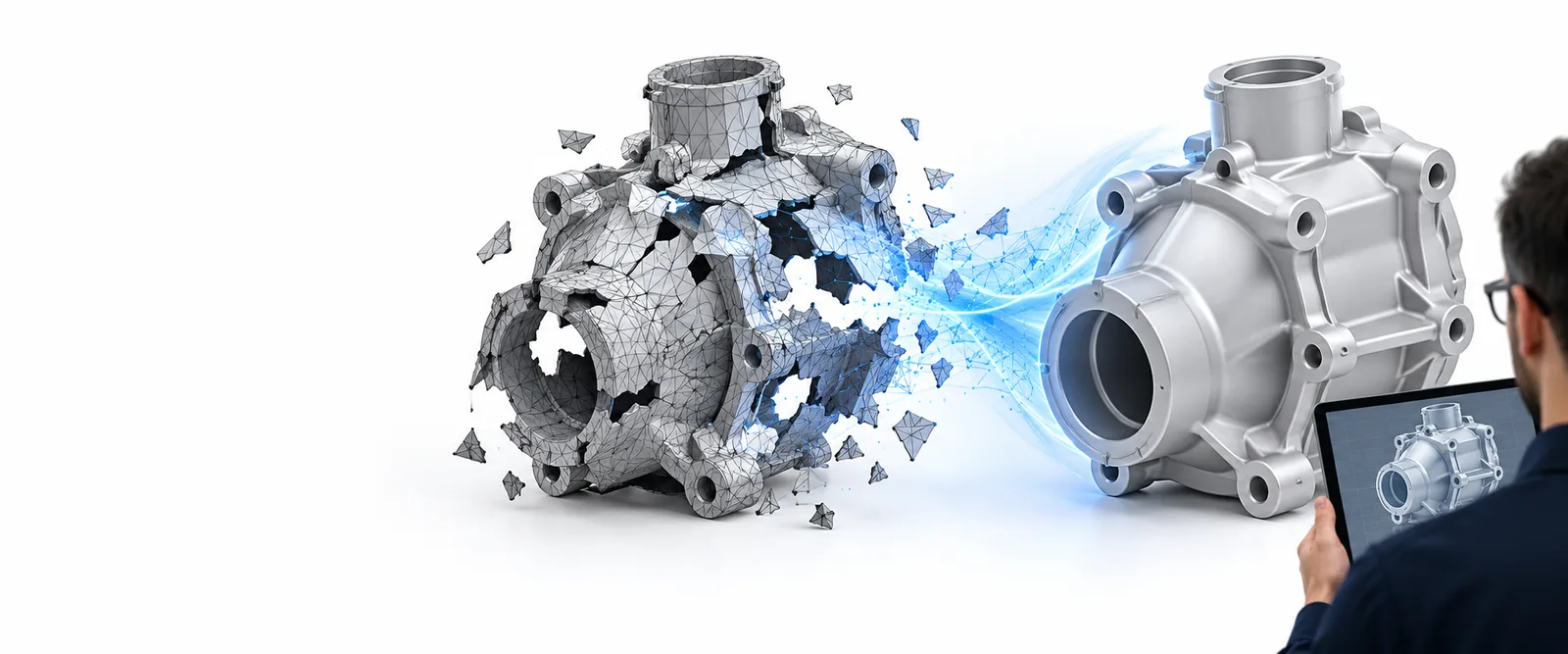
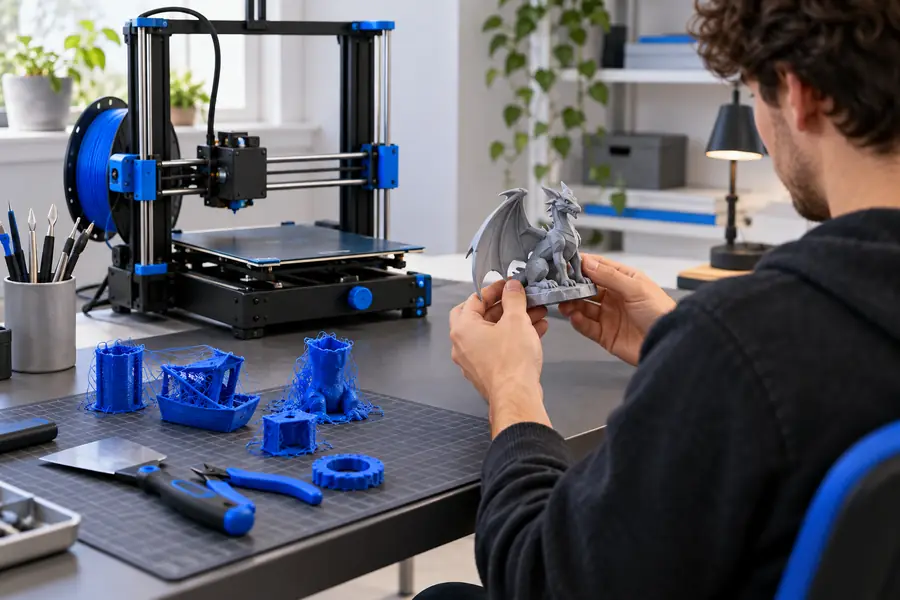
Free stl repair can mean checking a mesh before production, correcting common geometry problems, or testing an online workflow. This guide shows what to prepare, what a complete run looks like, and where free options may stop short.
Prerequisites
A clean input and a specific goal make STL repair easier to assess. Gather these details before choosing a free route or handing the file to another tool.
1
Prepare the mesh
Use the original STL when possible, keep a backup copy, and confirm that the file opens in a viewer. Remove duplicate exports so you know which version is being checked.
2
Name the defect
Record what looks wrong: holes, flipped normals, disconnected shells, self-intersections, thin walls, or a model that slices incorrectly. A clear symptom leads to a more useful repair pass.
3
Verify the result
Open the repaired file, inspect the changed areas, and run it through your intended slicer or downstream workflow. A file is not ready simply because it saved successfully.
The best free STL repair path depends on the defect, the size of the file, and how much control you need over the result. Use this comparison to set expectations before you begin.
Guided online workflow
Local desktop workflow
1
Setup
Guided online workflow
Open the workflow and provide the model or repair request.
Local desktop workflow
Install or launch a compatible application and configure the file.
2
Best for
Guided online workflow
Quick checks, straightforward defects, and users who want fewer setup steps.
Local desktop workflow
Repeated work, detailed inspection, and users who need local control.
3
Repair visibility
Guided online workflow
May present a simple result or summary, depending on the workflow.
Local desktop workflow
Usually offers more direct access to mesh views and individual controls.
4
File handling
Guided online workflow
Review the current upload and output rules before sending a model.
Local desktop workflow
The file stays within your chosen local workflow unless you export or share it.
5
Manual control
Guided online workflow
Convenient when the requested correction is clearly described.
Local desktop workflow
Better suited to targeted edits when automatic repair does not resolve the issue.
6
Final check
Guided online workflow
Download or open the result and validate it in your normal process.
Local desktop workflow
Inspect the saved file and test it in the slicer or application you use.
7
Main limitation
Guided online workflow
Access, file limits, and available repair actions can vary by service.
Local desktop workflow
Learning time and installation requirements can make one-off jobs slower.
One full run-through
Here is a complete free STL repair scenario from the first symptom to the final decision. The goal is not just to produce a new file, but to confirm that the defect is actually gone.
Prototype designer
A downloaded enclosure STL opens in a viewer, but the slicer reports an open surface and skips part of the shell.
Describe the missing surface, inspect the repaired shell, then slice a test copy to confirm the walls and openings remain intact.
A repair can appear successful while leaving a deeper problem behind. Compare the kind of defect that commonly blocks a workflow with the result you should look for after validation.
Before validation
After validation
A saved file is not proof of a sound mesh. Check the surface, shell structure, scale, and slicer behavior before treating the STL repair as complete.
Ready to test your STL repair workflow?
Bring a specific model and a clear defect description to the next step. Review the result carefully, keep your original file, and use the workflow that fits the amount of control your project requires.
Validate the exported result in your normal workflow
FAQ
These answers address the practical questions people ask when looking for a free STL repair route.
It usually refers to checking or correcting common mesh defects without committing to a paid desktop package. The exact tools, file limits, export rules, and available controls depend on the current workflow, so review those details before sending an important model.
No. Simple holes, flipped faces, and some disconnected geometry may be straightforward, while severe self-intersections, damaged scans, or poorly exported solids can require manual work. Always inspect the repaired mesh and test it in the application that will use it.
Keep an untouched copy of the original, confirm that the file opens, and note the visible symptom or error message. It also helps to identify whether the model should be one closed shell, several separate parts, or a surface intended for another process.
Open the output and compare it with the source around the reported defect. Then check for holes, unwanted fragments, reversed surfaces, and changes in scale before running the file through your slicer or other downstream validation step.
Neither is automatically better. An online route can reduce setup for a one-off check, while desktop software may provide more direct inspection and manual control. Choose based on the defect, the sensitivity of the file, and how often you expect to repeat the repair.